> ## Documentation Index
> Fetch the complete documentation index at: https://cometchat-22654f5b-design-linden-theme.mintlify.site/llms.txt
> Use this file to discover all available pages before exploring further.
# How To Add UIKit Module?
To add UI Kit module developer will need to follow the three basic steps.
Step 1- Download [UI Kit](https://github.com/cometchat-pro/ui-kit/android) library from Github
Step 2- To add **uikit** module developer needs to follow few steps:
a. Right-click on **an app** and go to **Open Module Settings**
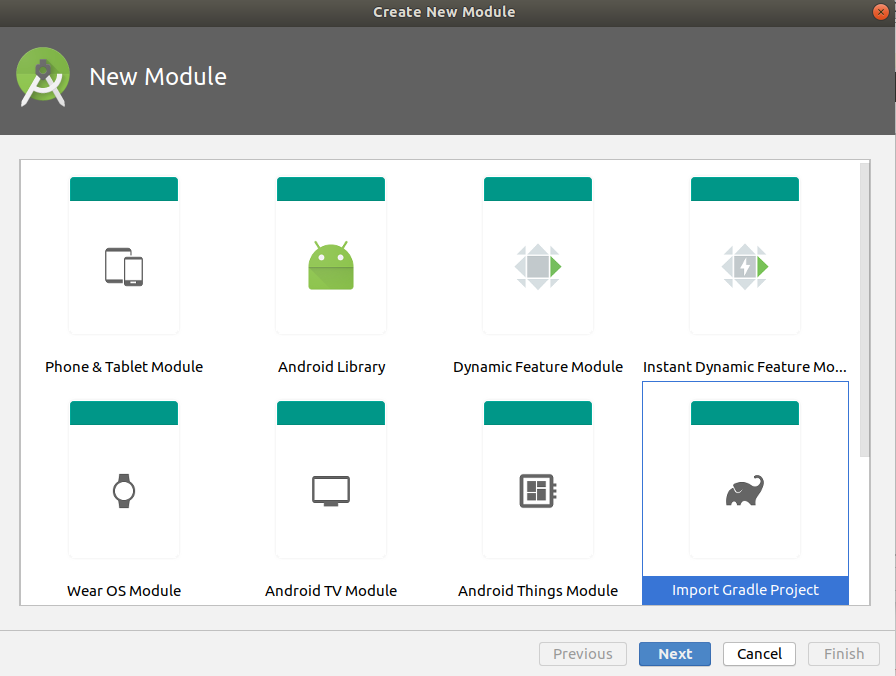
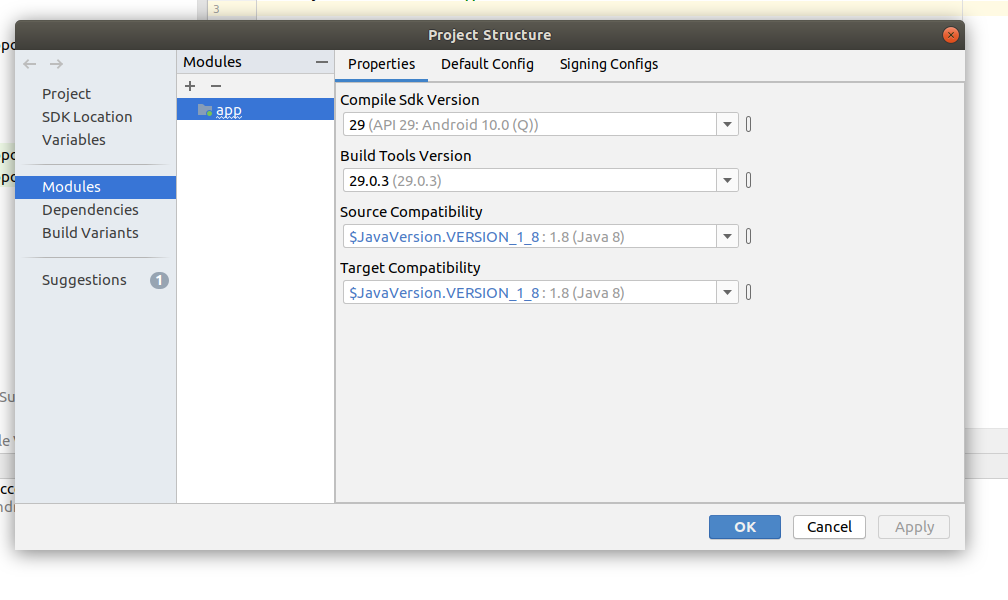 b. Click on **+** and select **Import Gradle Project** from Create New Module Window and click **Next**.
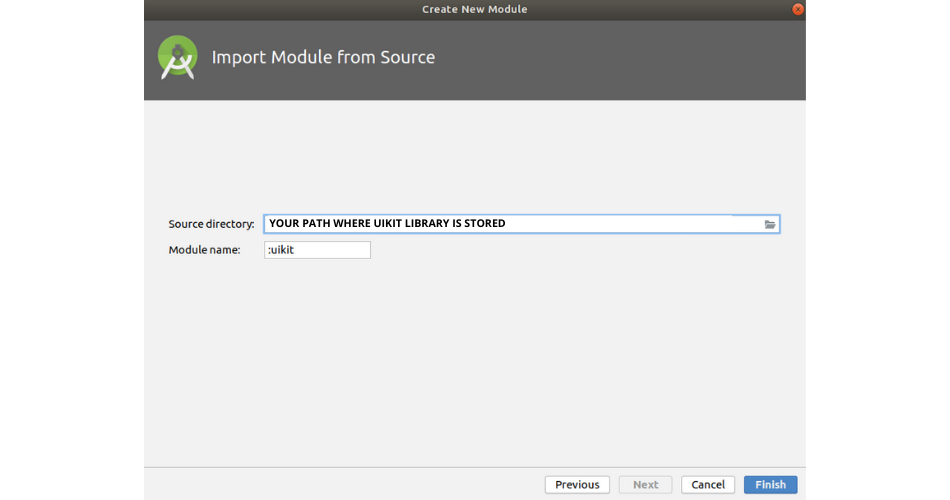
 c. After that developer has to enter the path of **uikit** which he/she has downloaded and click on **Finish**.
 Step 3- After following these steps **uikit** is successfully added in the project. Now to integrate the **uikit** in project developer can either copy and paste the following in (app level) `build.gradle`.
```gradle
implementation project(path: ':uikit')
```
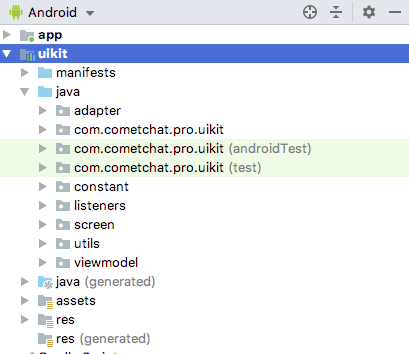
If the Library is added successfully, it will look like mentioned in the below image.
Step 3- After following these steps **uikit** is successfully added in the project. Now to integrate the **uikit** in project developer can either copy and paste the following in (app level) `build.gradle`.
```gradle
implementation project(path: ':uikit')
```
If the Library is added successfully, it will look like mentioned in the below image.
 ***Next Steps** [Configure UI Ki](/docs/ui-kit/android/v3/overview#configure-android-java-ui-kit-library)t*